> ## Documentation Index
> Fetch the complete documentation index at: https://www.anything.com/docs/llms.txt
> Use this file to discover all available pages before exploring further.
# Auth
> Add sign up, login, and user accounts to your app
User Accounts let people sign up, sign in, and stay logged in to your app. Ask the agent and it handles the rest, from login pages to storing users in your database.
Use User Accounts to:
* Let users sign up and sign in
* Protect pages so only logged-in users can see them
* Store data per user
* Personalize the experience
## Getting started
Say something like "add sign up and login" or "let users create accounts." Anything will:
1. Enable User Accounts in your project
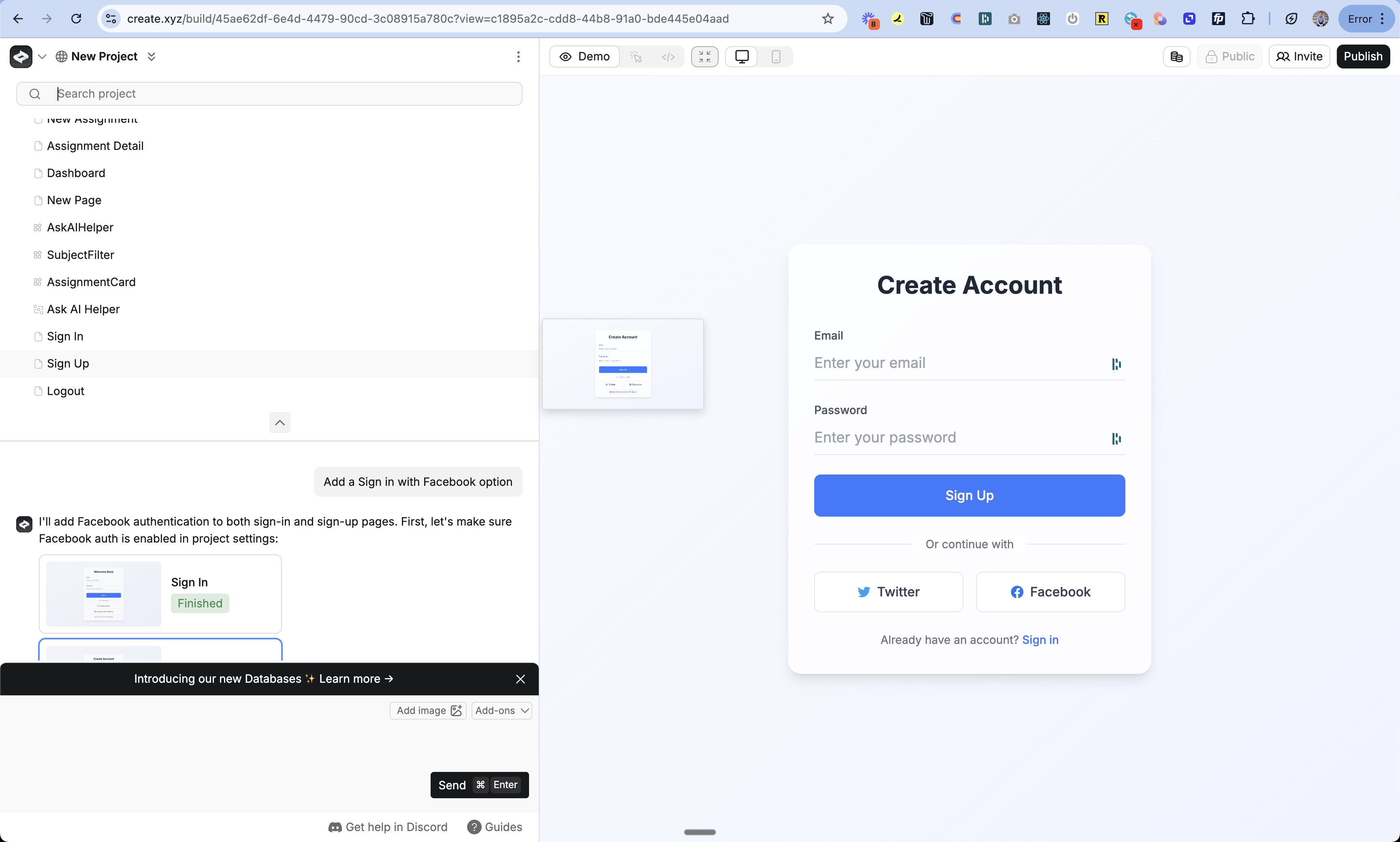
2. Add sign up, sign in, and logout pages
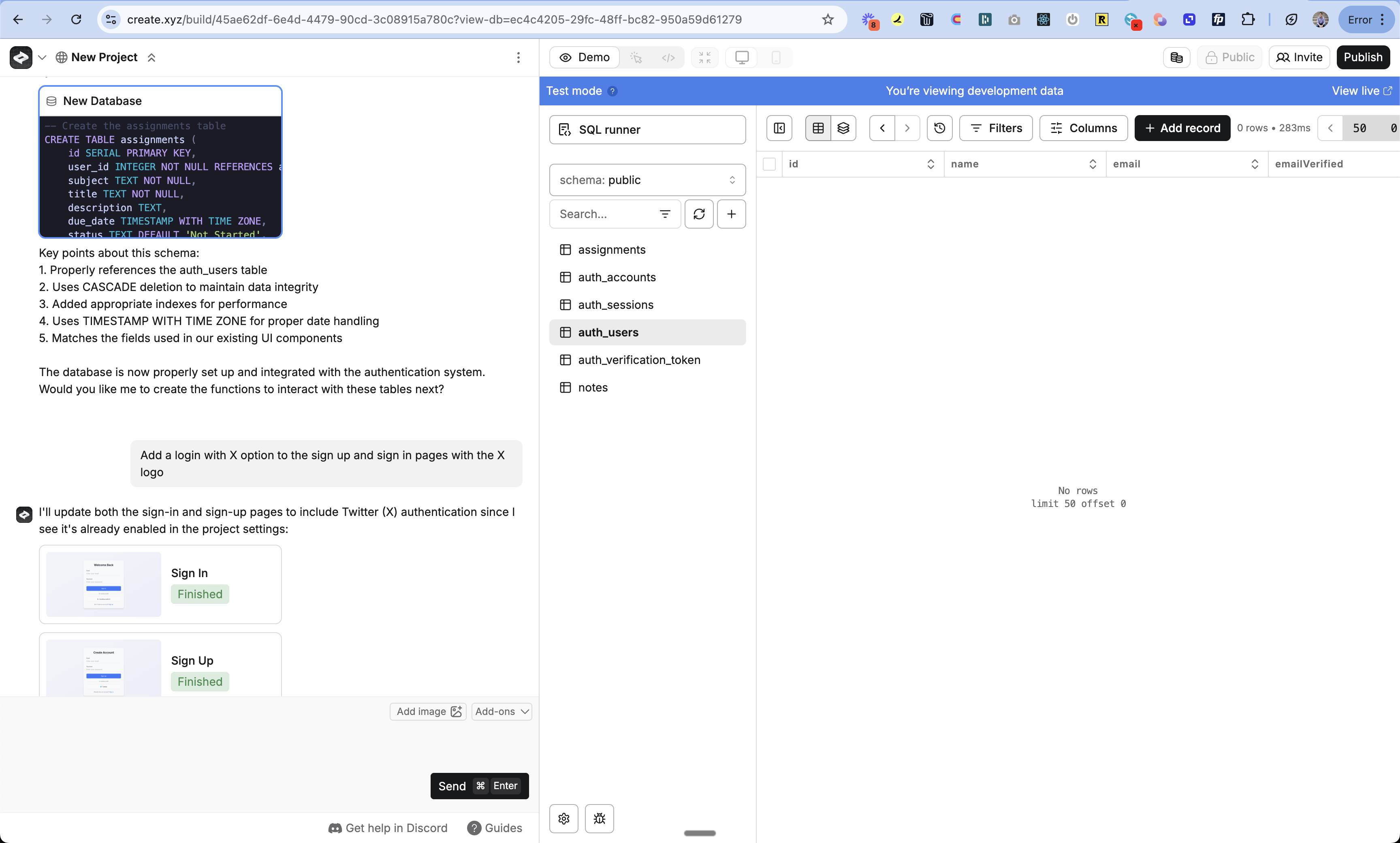
3. Create [auth tables](/apps/databases) in your database to store users
4. Add checks to your pages and functions so only logged-in users can access protected content
You'll know it's working when you see the auth pages in the [Project Selector](/builder/controls#project-selector) and the auth tables in your [database viewer](/apps/databases).
 ## Auth pages
Anything creates three pages:
* `/account/signup`
* `/account/signin`
* `/account/logout`
You can customize how they look. Say "add a logo to the sign in page" or "make the auth pages match my brand." You can also create sign-in and sign-up components to embed anywhere in your app.
## Auth tables
Anything creates four tables in your [database](/apps/databases):
| Table | What it stores |
| ------------------------- | ----------------------------------------------------- |
| `auth_users` | User profiles (email, name, image) |
| `auth_accounts` | Login methods per user (email/password, Google, etc.) |
| `auth_sessions` | Active sessions |
| `auth_verification_token` | Email verification and magic link tokens |
## Auth pages
Anything creates three pages:
* `/account/signup`
* `/account/signin`
* `/account/logout`
You can customize how they look. Say "add a logo to the sign in page" or "make the auth pages match my brand." You can also create sign-in and sign-up components to embed anywhere in your app.
## Auth tables
Anything creates four tables in your [database](/apps/databases):
| Table | What it stores |
| ------------------------- | ----------------------------------------------------- |
| `auth_users` | User profiles (email, name, image) |
| `auth_accounts` | Login methods per user (email/password, Google, etc.) |
| `auth_sessions` | Active sessions |
| `auth_verification_token` | Email verification and magic link tokens |
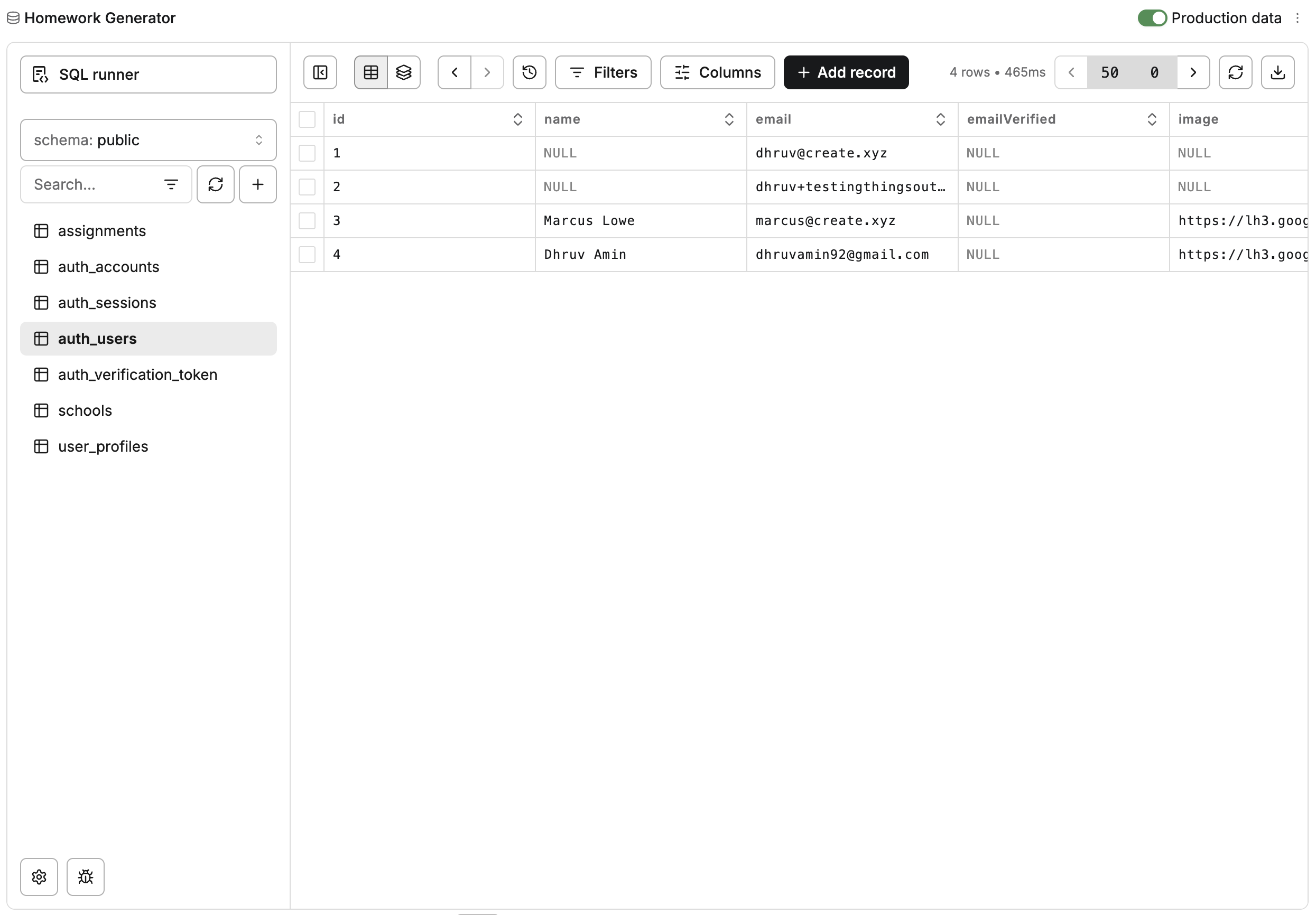 You don't need to manage these directly. Anything handles it. But knowing the structure helps if you're debugging or building advanced features.
## Protected pages
Tell Anything which pages require sign-in and which are public. If someone visits a protected page without being logged in, Anything redirects them to sign in and sends them back after.
```
Only signed-in users should see the dashboard. Keep the landing page public.
```
## How sessions work
When someone signs up or signs in, Anything stores a secure cookie in their browser. That cookie keeps them logged in as they browse your app.
* Protected pages and functions check the cookie before loading
* No valid cookie? Anything redirects to sign-in
* Logout clears the cookie and ends the session
Passwords are hashed with bcrypt. Sessions use JWT tokens.
## Example
Say you have a landing page at `/` and an AI homework creator at `/app`.
1. Say "add sign up and login, only signed-in users can use the homework creator"
2. Or protect manually: go to the `/app` page, open the [3-dot menu](/builder/controls) > Settings > "Require account to view"
3. Publish
Now `/` stays public, `/app` redirects to sign-in, and after login users land on `/app`. From there:
```
When the user is logged in, show their profile in the top right and store their AI generations
```
```
If this is the user's first time, show them an onboarding flow
```
## Customizing auth pages
```
Add a logo to the sign in page
```
```
Make the sign in and sign up pages match the rest of my app
```
```
Add a terms of service checkbox to sign up
```
If you add extra fields to sign up (like name or phone number), make sure they're optional in the [database](/apps/databases). Only email and password should be required for sign up to work. You can collect additional info after the user creates their account.
## Flows and redirects
Tell Anything where to send users after sign up, sign in, and logout.
```
After sign up, send users to the dashboard. After logout, send them to the homepage.
```
Anything handles the full flow automatically: form validation, storing the account, setting the session cookie, and redirecting.
## User data
By default, Anything stores email, a hashed password, user ID, and created date. You can add anything else:
```
Add a bio field to user profiles
```
```
Store user preferences like theme and notification settings
```
```
Let users upload a profile picture
```
Anything adds the fields to your database, updates the queries, and wires up the UI.
### Using user data
Reference user data in your prompts and Anything updates your pages and functions to use it.
```
Show the logged-in user's tasks in the main feed
```
```
If the user is logged in, show a profile image in the top right. Otherwise show sign up and sign in buttons.
```
You can also view and edit user data from the [Database Viewer](/apps/databases).
### Roles and permissions
Add roles to control who can do what. Describe the roles you want and how behavior should change:
```
Add an admin role. If the signed-in user is admin, show the settings page. Otherwise hide it.
```
## Auth methods
Anything supports five sign-in methods. Toggle them on or off in **Project Settings**.
You don't need to manage these directly. Anything handles it. But knowing the structure helps if you're debugging or building advanced features.
## Protected pages
Tell Anything which pages require sign-in and which are public. If someone visits a protected page without being logged in, Anything redirects them to sign in and sends them back after.
```
Only signed-in users should see the dashboard. Keep the landing page public.
```
## How sessions work
When someone signs up or signs in, Anything stores a secure cookie in their browser. That cookie keeps them logged in as they browse your app.
* Protected pages and functions check the cookie before loading
* No valid cookie? Anything redirects to sign-in
* Logout clears the cookie and ends the session
Passwords are hashed with bcrypt. Sessions use JWT tokens.
## Example
Say you have a landing page at `/` and an AI homework creator at `/app`.
1. Say "add sign up and login, only signed-in users can use the homework creator"
2. Or protect manually: go to the `/app` page, open the [3-dot menu](/builder/controls) > Settings > "Require account to view"
3. Publish
Now `/` stays public, `/app` redirects to sign-in, and after login users land on `/app`. From there:
```
When the user is logged in, show their profile in the top right and store their AI generations
```
```
If this is the user's first time, show them an onboarding flow
```
## Customizing auth pages
```
Add a logo to the sign in page
```
```
Make the sign in and sign up pages match the rest of my app
```
```
Add a terms of service checkbox to sign up
```
If you add extra fields to sign up (like name or phone number), make sure they're optional in the [database](/apps/databases). Only email and password should be required for sign up to work. You can collect additional info after the user creates their account.
## Flows and redirects
Tell Anything where to send users after sign up, sign in, and logout.
```
After sign up, send users to the dashboard. After logout, send them to the homepage.
```
Anything handles the full flow automatically: form validation, storing the account, setting the session cookie, and redirecting.
## User data
By default, Anything stores email, a hashed password, user ID, and created date. You can add anything else:
```
Add a bio field to user profiles
```
```
Store user preferences like theme and notification settings
```
```
Let users upload a profile picture
```
Anything adds the fields to your database, updates the queries, and wires up the UI.
### Using user data
Reference user data in your prompts and Anything updates your pages and functions to use it.
```
Show the logged-in user's tasks in the main feed
```
```
If the user is logged in, show a profile image in the top right. Otherwise show sign up and sign in buttons.
```
You can also view and edit user data from the [Database Viewer](/apps/databases).
### Roles and permissions
Add roles to control who can do what. Describe the roles you want and how behavior should change:
```
Add an admin role. If the signed-in user is admin, show the settings page. Otherwise hide it.
```
## Auth methods
Anything supports five sign-in methods. Toggle them on or off in **Project Settings**.
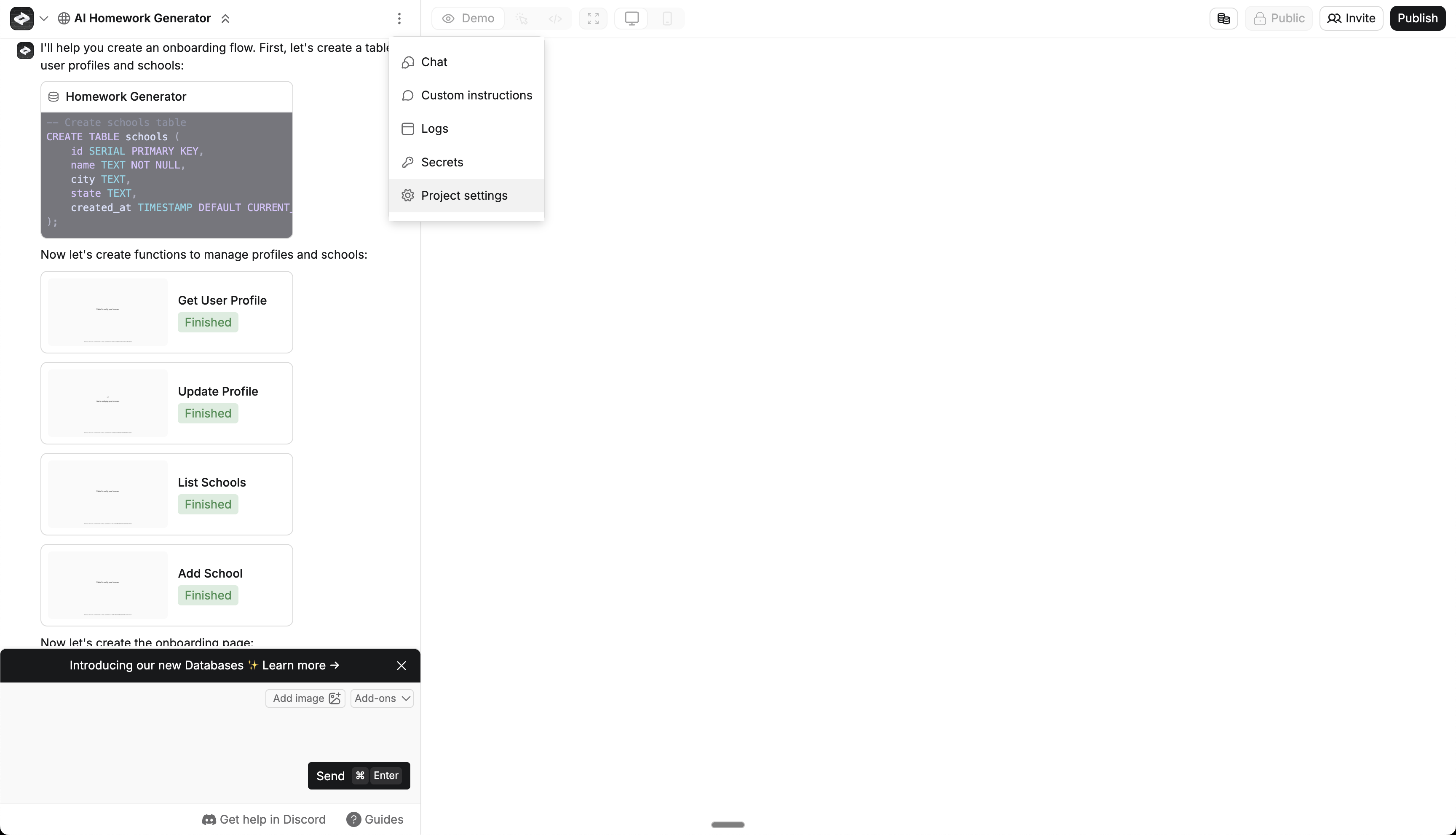 | Method | Setup | Guide |
| -------------- | ------------------------------------------------------- | ----------------------- |
| Email/Password | None, enabled by default. Passwords hashed with bcrypt. | |
| Google | Requires a Google Client ID and Secret | [Guide](/auth/google) |
| Apple | Coming soon | |
| Facebook | Requires a Facebook App ID and Secret | [Guide](/auth/facebook) |
| X (Twitter) | Requires an X Client ID and Secret | [Guide](/auth/x) |
Anything also supports magic links for passwordless sign-in. Ask the agent to "add magic link login" and it sets up email-based sign-in with no password required.
Per Apple's App Store guidelines, Google and Facebook SSO cannot be present in iOS builds until Sign in with Apple is available. Don't add Google or Facebook login to mobile apps yet.
## Testing
1. Publish your changes
2. Open an incognito window
3. Visit a protected page and confirm it redirects to sign-in
4. Create a test account and confirm you can access the page
## Troubleshooting
If auth isn't working:
* Check that User Accounts is enabled. You should see sign up, sign in, and logout pages in the [Project Selector](/builder/controls#project-selector) and auth tables in the database.
* Check page settings to confirm the page requires sign-in
* Open the `auth_users` table to verify the user was created
* Test with a fresh account in incognito
* See [Get Help](/support/help) for more
### Error codes
If someone hits an error during sign in or sign up, check the URL for `?error=[code]`.
| Method | Setup | Guide |
| -------------- | ------------------------------------------------------- | ----------------------- |
| Email/Password | None, enabled by default. Passwords hashed with bcrypt. | |
| Google | Requires a Google Client ID and Secret | [Guide](/auth/google) |
| Apple | Coming soon | |
| Facebook | Requires a Facebook App ID and Secret | [Guide](/auth/facebook) |
| X (Twitter) | Requires an X Client ID and Secret | [Guide](/auth/x) |
Anything also supports magic links for passwordless sign-in. Ask the agent to "add magic link login" and it sets up email-based sign-in with no password required.
Per Apple's App Store guidelines, Google and Facebook SSO cannot be present in iOS builds until Sign in with Apple is available. Don't add Google or Facebook login to mobile apps yet.
## Testing
1. Publish your changes
2. Open an incognito window
3. Visit a protected page and confirm it redirects to sign-in
4. Create a test account and confirm you can access the page
## Troubleshooting
If auth isn't working:
* Check that User Accounts is enabled. You should see sign up, sign in, and logout pages in the [Project Selector](/builder/controls#project-selector) and auth tables in the database.
* Check page settings to confirm the page requires sign-in
* Open the `auth_users` table to verify the user was created
* Test with a fresh account in incognito
* See [Get Help](/support/help) for more
### Error codes
If someone hits an error during sign in or sign up, check the URL for `?error=[code]`.
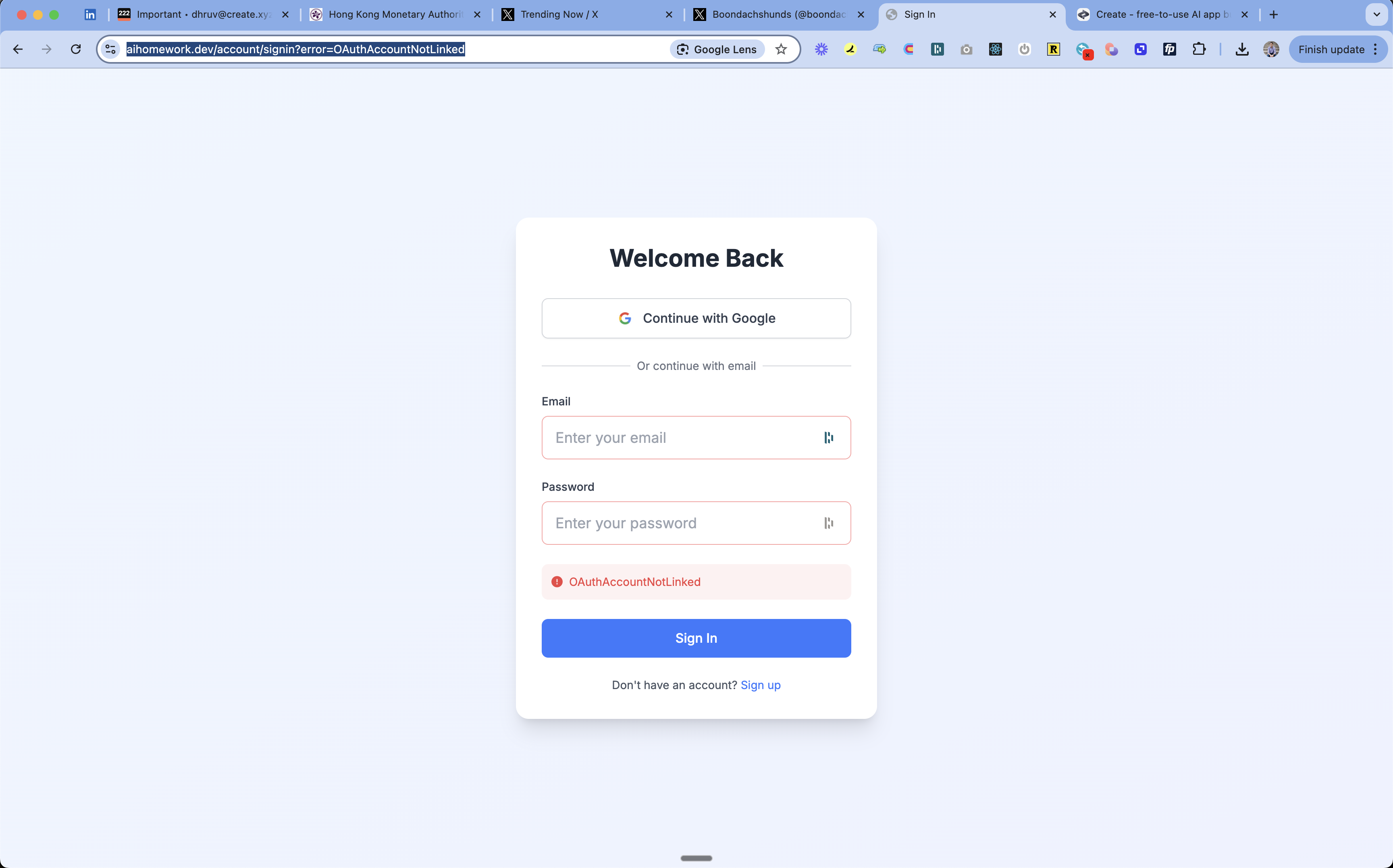 Common error codes and fixes:
* **OAuthSignin/Callback**: OAuth configuration issue
* Check provider settings and keys
* Verify redirect URLs
* **OAuthAccountNotLinked**: Email already used with different auth method
* User should sign in with original method (e.g. Google instead of email)
* **CredentialsSignin**: Wrong email/password
* Double-check credentials
* Reset password if needed
* **EmailCreateAccount**: Email already registered
* Use sign in instead
* Reset password if needed
* **AccessDenied**: Permission issue
* Check access settings
* Verify allowed domains
* **Configuration**: System setup issue
* Check auth configuration
* Verify environment variables
***
Store user data and content
Go live with auth
Common error codes and fixes:
* **OAuthSignin/Callback**: OAuth configuration issue
* Check provider settings and keys
* Verify redirect URLs
* **OAuthAccountNotLinked**: Email already used with different auth method
* User should sign in with original method (e.g. Google instead of email)
* **CredentialsSignin**: Wrong email/password
* Double-check credentials
* Reset password if needed
* **EmailCreateAccount**: Email already registered
* Use sign in instead
* Reset password if needed
* **AccessDenied**: Permission issue
* Check access settings
* Verify allowed domains
* **Configuration**: System setup issue
* Check auth configuration
* Verify environment variables
***
Store user data and content
Go live with auth