> ## Documentation Index
> Fetch the complete documentation index at: https://www.anything.com/docs/llms.txt
> Use this file to discover all available pages before exploring further.
# Getting Started with Mobile Apps
> Your first app, on your phone
Anything lets you build native iOS and Android apps by describing what you want. No coding required.
 Mobile app support is rapidly evolving. You might hit limitations with certain features or device capabilities. Try building different apps and tell us what works and what breaks.
## How to build
Prompt Anything to make a mobile app. It builds your app in mobile pages and adds more functionality as you go. You can add more pages by prompting or from the [logo menu](/builder/controls#logo-menu).
You need a [Pro account](/account/credits) to build mobile apps.
Create a fresh project from your dashboard. For a full overview of how to build with Anything, see the [Essentials guide](/essentials).
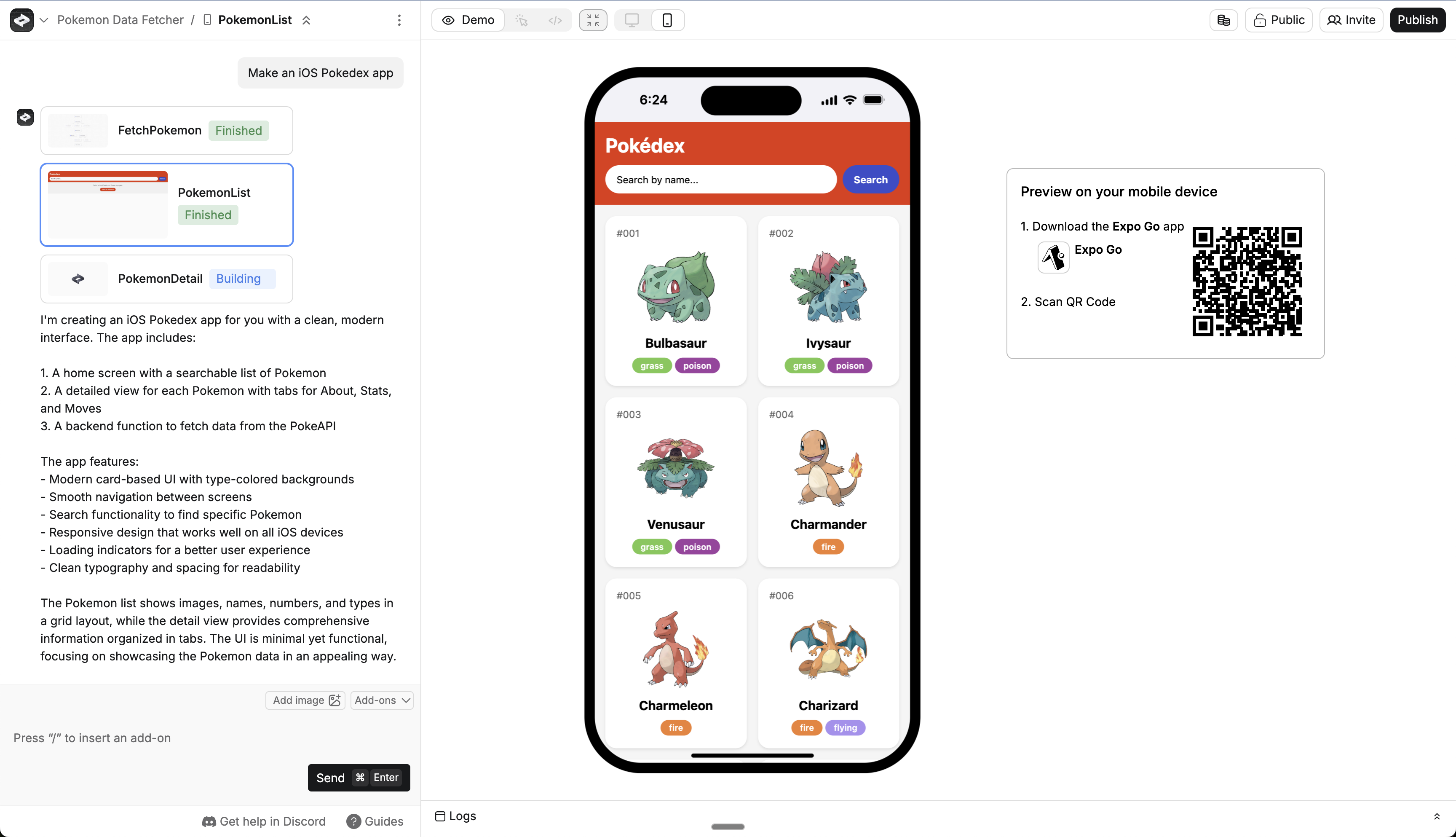
Prompt Anything to make a mobile app. You can say things like "Make an iOS app that..." or "Make an Android app that..." or "Make a mobile app that..."
Anything generates your first mobile screen. You'll know it's working if you see the mobile preview.
This is a web preview, so features that rely on a device (like location or camera) might not work. See [Preview on your device](#preview-on-your-device) to test on your phone.
Download [Expo Go](https://expo.dev/client) and preview your app on a physical device. If you're on iPhone, install it from the [App Store](https://apps.apple.com/us/app/expo-go/id982107779).
See the [Preview on your device](#preview-on-your-device) section for detailed steps.
Request specific mobile capabilities:
```
Add a barcode scanner to scan product nutrition labels
```
```
Let users take photos of their workout progress
```
Anything supports mobile-specific capabilities. For a deeper dive, read [Device capabilities](/apps/mobile/device-capabilities).
Use Anything's built-in [databases](/apps/databases), [functions](/apps/backend), [auth](/apps/auth), and [payments](/payments/revenuecat) to build complete apps. Describe what you want and Anything adds the right pieces.
For example:
```
Make a fitness tracking app where users can log workouts,
track progress, and set goals. Include a calendar view.
```
Preview on your device and make improvements through conversation.
Be specific about issues so Anything can fix the underlying code:
```
The workout screen is cluttered. Simplify it and make the "Add Workout" button more prominent.
```
```
The app crashes when I try to take a photo. Can you fix this?
```
For debugging techniques and strategies, see the [testing guide](/apps/mobile/testing).
Head into **Project Settings** to upload an icon and loading screen for your app.
Mobile app support is rapidly evolving. You might hit limitations with certain features or device capabilities. Try building different apps and tell us what works and what breaks.
## How to build
Prompt Anything to make a mobile app. It builds your app in mobile pages and adds more functionality as you go. You can add more pages by prompting or from the [logo menu](/builder/controls#logo-menu).
You need a [Pro account](/account/credits) to build mobile apps.
Create a fresh project from your dashboard. For a full overview of how to build with Anything, see the [Essentials guide](/essentials).
Prompt Anything to make a mobile app. You can say things like "Make an iOS app that..." or "Make an Android app that..." or "Make a mobile app that..."
Anything generates your first mobile screen. You'll know it's working if you see the mobile preview.
This is a web preview, so features that rely on a device (like location or camera) might not work. See [Preview on your device](#preview-on-your-device) to test on your phone.
Download [Expo Go](https://expo.dev/client) and preview your app on a physical device. If you're on iPhone, install it from the [App Store](https://apps.apple.com/us/app/expo-go/id982107779).
See the [Preview on your device](#preview-on-your-device) section for detailed steps.
Request specific mobile capabilities:
```
Add a barcode scanner to scan product nutrition labels
```
```
Let users take photos of their workout progress
```
Anything supports mobile-specific capabilities. For a deeper dive, read [Device capabilities](/apps/mobile/device-capabilities).
Use Anything's built-in [databases](/apps/databases), [functions](/apps/backend), [auth](/apps/auth), and [payments](/payments/revenuecat) to build complete apps. Describe what you want and Anything adds the right pieces.
For example:
```
Make a fitness tracking app where users can log workouts,
track progress, and set goals. Include a calendar view.
```
Preview on your device and make improvements through conversation.
Be specific about issues so Anything can fix the underlying code:
```
The workout screen is cluttered. Simplify it and make the "Add Workout" button more prominent.
```
```
The app crashes when I try to take a photo. Can you fix this?
```
For debugging techniques and strategies, see the [testing guide](/apps/mobile/testing).
Head into **Project Settings** to upload an icon and loading screen for your app.
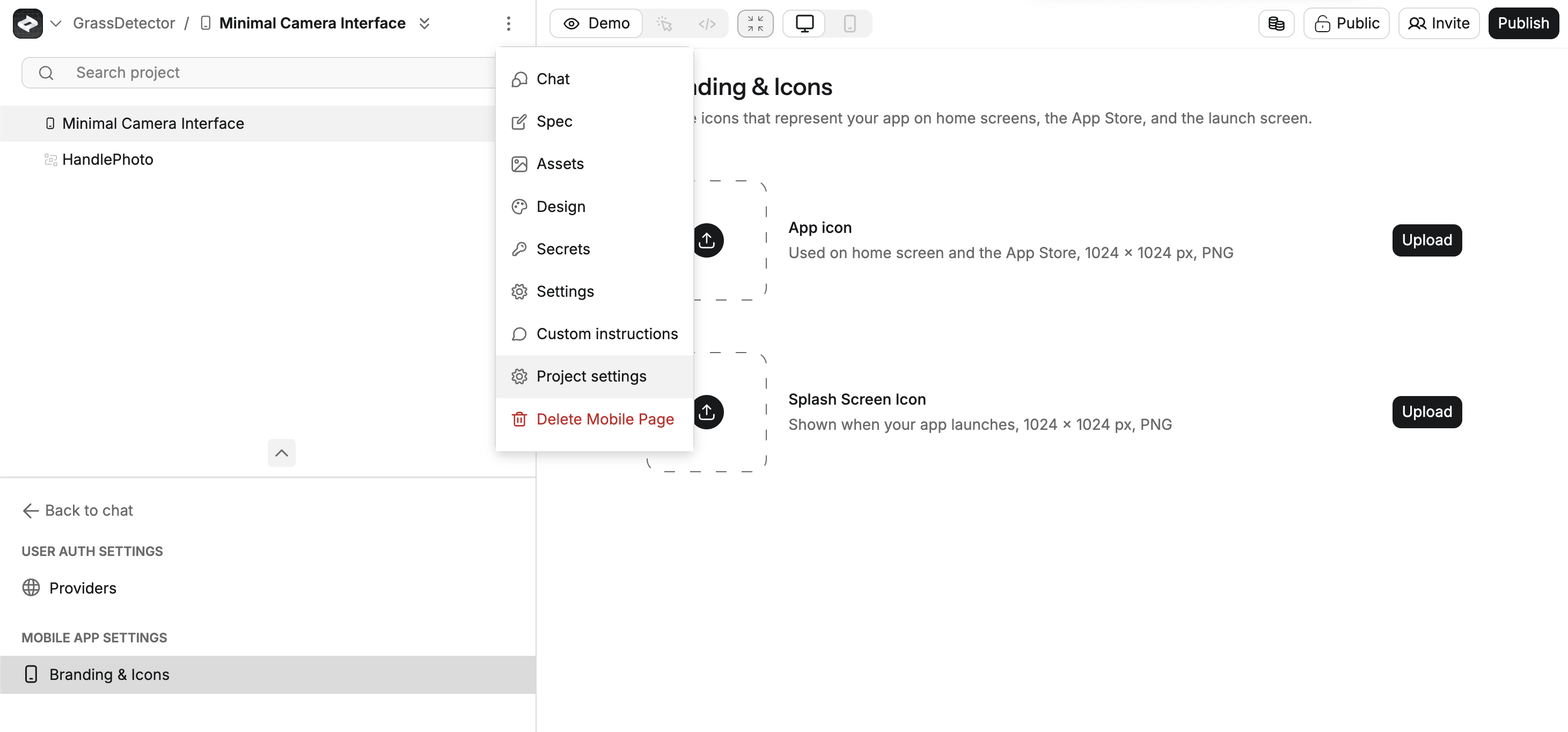 Both icons need a 1024 x 1024px PNG.
When you're ready, follow the steps in [Publishing to app stores](/launch/app-store) to publish to Apple's App Store or Google's Play Store.
## Preview on your device
The web builder shows a preview of your app as you chat. But to test the full experience, preview on your device. Some features that need device capabilities only work in preview.
Start a new mobile project with a prompt or go to an existing one.
Anything starts building your device preview right away. This might take a few moments. If it takes longer than a minute, let us know at [hello@anything.com](mailto:hello@anything.com).
Use your camera or a QR code scanner app on iOS or Android to grab the link.
Both icons need a 1024 x 1024px PNG.
When you're ready, follow the steps in [Publishing to app stores](/launch/app-store) to publish to Apple's App Store or Google's Play Store.
## Preview on your device
The web builder shows a preview of your app as you chat. But to test the full experience, preview on your device. Some features that need device capabilities only work in preview.
Start a new mobile project with a prompt or go to an existing one.
Anything starts building your device preview right away. This might take a few moments. If it takes longer than a minute, let us know at [hello@anything.com](mailto:hello@anything.com).
Use your camera or a QR code scanner app on iOS or Android to grab the link.
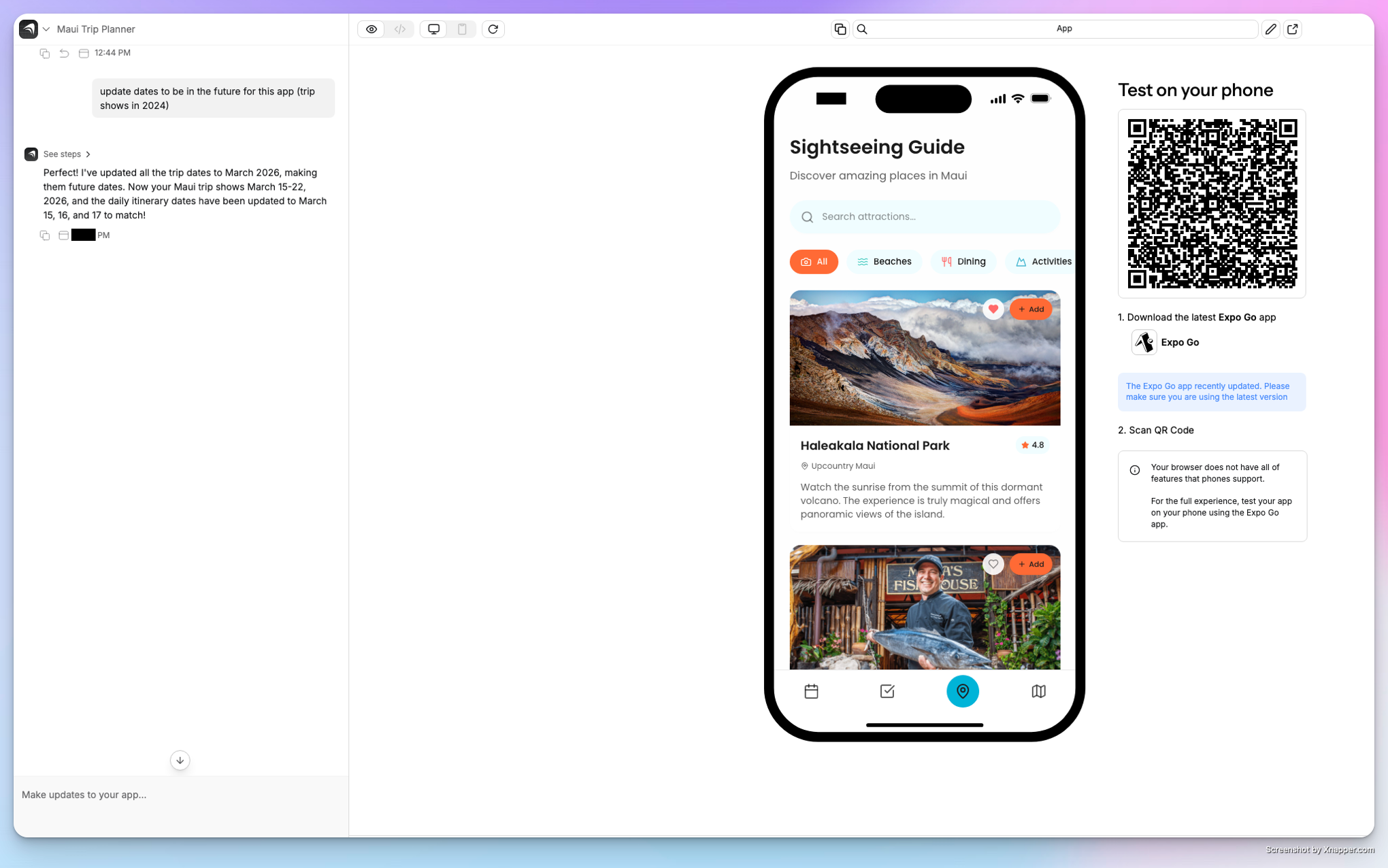 Your app opens in Expo Go. Try it out.
Continue building your app by chatting with Anything in the web interface.
Close and reopen Expo Go to see latest changes. It should auto-update with the latest version of your app. If you need to force it, scan the QR code again.
Testing on a physical device gives you the most accurate experience, especially for hardware features like camera or sensors.
***
## Related pages
Camera, location, and more
Submit to the App Store
Submit to the Play Store
Debug and test your app
Back to mobile docs