> ## Documentation Index
> Fetch the complete documentation index at: https://www.anything.com/docs/llms.txt
> Use this file to discover all available pages before exploring further.
# Pexels
> Add beautiful stock photos
Pexels lets you find and use beautiful stock photos in your project.
## Overview
Sign up for a Pexels account
Generate your Pexels API key
Add your API key to Anything's secrets
## Account Creation
Go to [pexels.com](https://www.pexels.com/) and click "Join" in the top right corner
 * Sign up with email/password
* Or continue with Google authentication
## Generate API Key
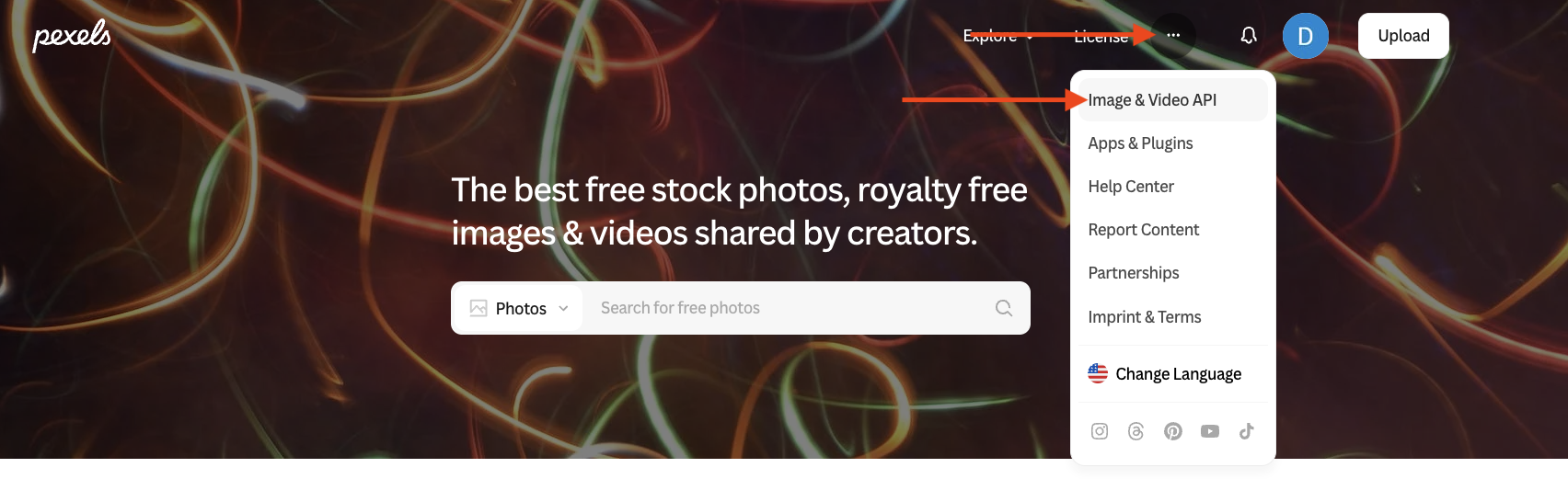
1. Click the three-dot menu next to your profile avatar
2. Select "Images & Video API" from the dropdown
* Sign up with email/password
* Or continue with Google authentication
## Generate API Key
1. Click the three-dot menu next to your profile avatar
2. Select "Images & Video API" from the dropdown
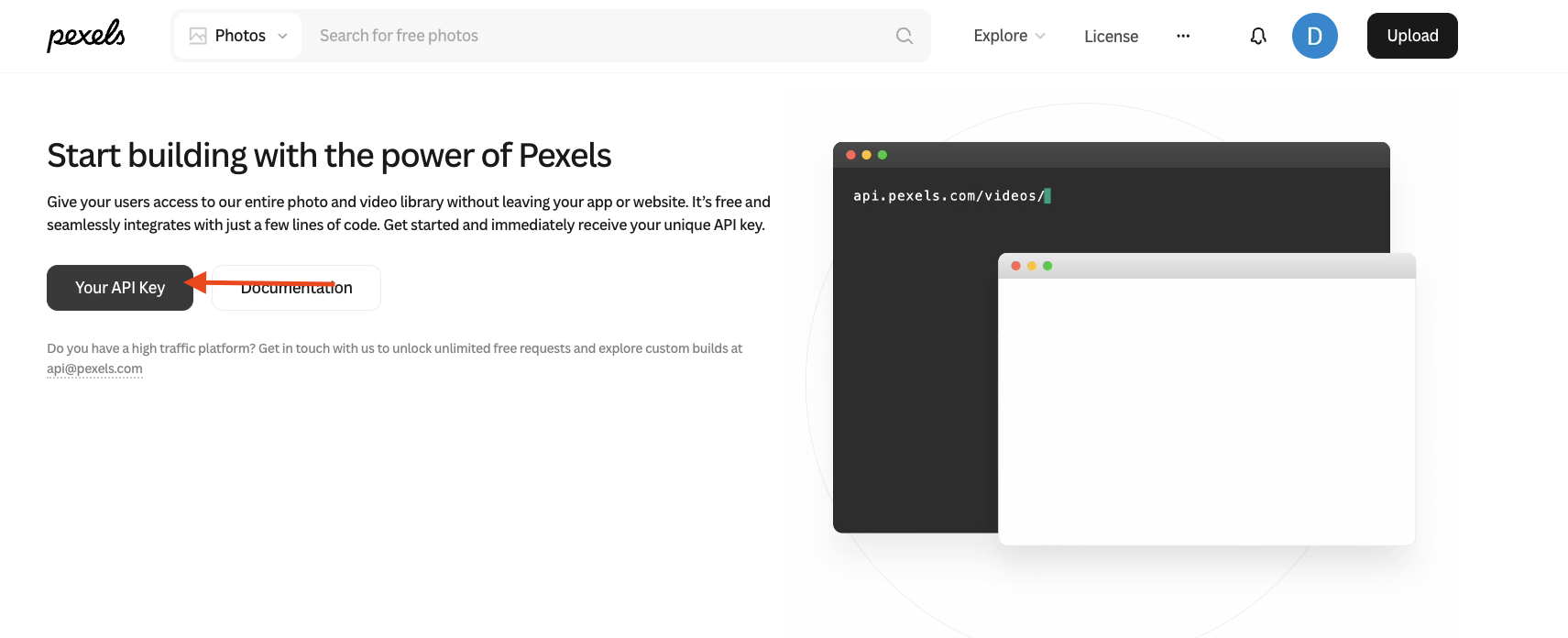
 1. Click "Your API Key" button
2. Generate new token for Anything integration
1. Click "Your API Key" button
2. Generate new token for Anything integration
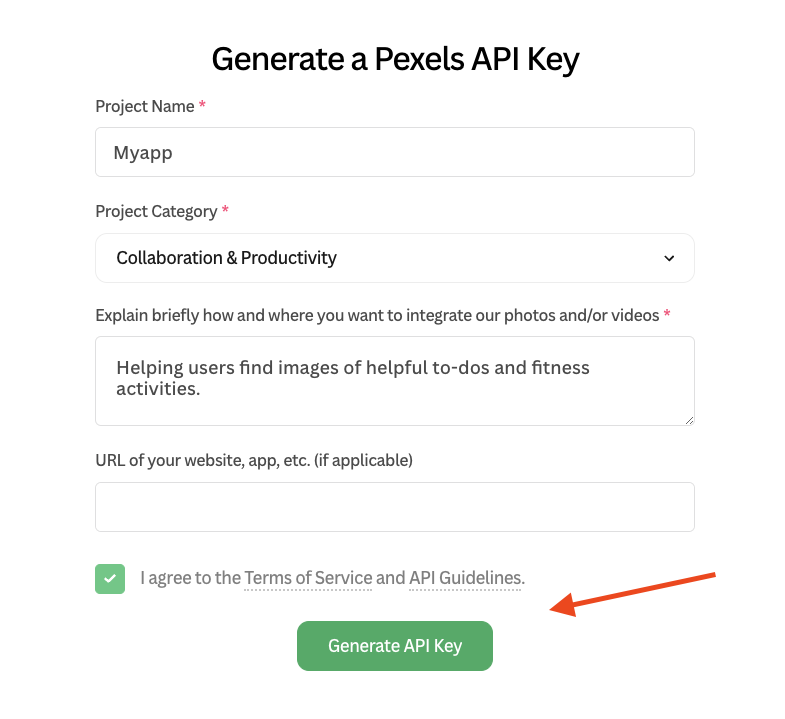 1. Copy the generated API key
2. You can find this key again from your Pexels dashboard
## Add to Anything project
1. In your Anything project, type `/` in the chat
2. Select "Pexels" from the menu and send a messsage
1. Paste your Pexels API key into the "Pexels API Key" field
Need a new key? Contact [Pexels support](mailto:api@pexels.com).
You can now use prompts with the integration to add stock photos.
Some examples:
* `Make the homepage banner a photo of a retailer with /Pexels`
* `Find me a photo of a dog playing fetch with /Pexels and add it`
* `Make a gallery of product images with /Pexels`
Pexels photos may change over time. Save the image URLs so they
stick around between sessions.
Example prompt for saving:
```
When using /Pexels, save the image URLs so I can reuse them later
```
Your Pexels integration is now ready! Use the `/Pexels` command in chat to add stock photos.
1. Copy the generated API key
2. You can find this key again from your Pexels dashboard
## Add to Anything project
1. In your Anything project, type `/` in the chat
2. Select "Pexels" from the menu and send a messsage
1. Paste your Pexels API key into the "Pexels API Key" field
Need a new key? Contact [Pexels support](mailto:api@pexels.com).
You can now use prompts with the integration to add stock photos.
Some examples:
* `Make the homepage banner a photo of a retailer with /Pexels`
* `Find me a photo of a dog playing fetch with /Pexels and add it`
* `Make a gallery of product images with /Pexels`
Pexels photos may change over time. Save the image URLs so they
stick around between sessions.
Example prompt for saving:
```
When using /Pexels, save the image URLs so I can reuse them later
```
Your Pexels integration is now ready! Use the `/Pexels` command in chat to add stock photos.