> ## Documentation Index
> Fetch the complete documentation index at: https://www.anything.com/docs/llms.txt
> Use this file to discover all available pages before exploring further.
# UPC Database
> Access product information through UPC barcodes
UPC Database API allows you to retrieve detailed product information using UPC/EAN barcodes, enabling you to build product lookup and inventory management applications.
## Overview
Sign up for a UPC Database account
Generate your UPC Database API key
Add your API key to Anything's secrets
## Account Creation
Go to [upcdatabase.org](https://upcdatabase.org/) and click "Sign Up"
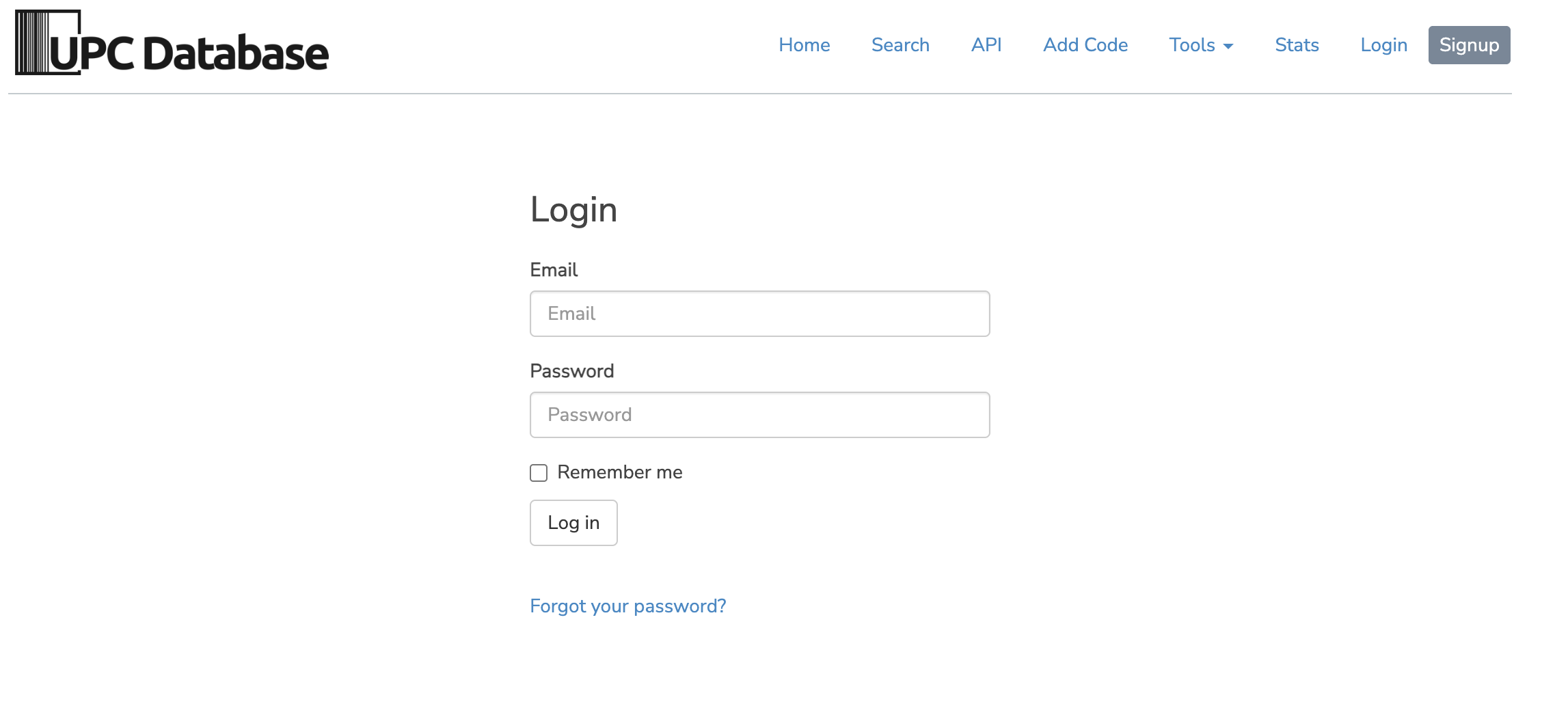 * Fill in your email and password
* Complete the verification process
* Select your subscription plan
## Generate API Key
1. Log in to your UPC Database account
2. Navigate to the "API Keys" section
1. Click "New Token"
2. Name your key (e.g., "Anything Integration")
* Fill in your email and password
* Complete the verification process
* Select your subscription plan
## Generate API Key
1. Log in to your UPC Database account
2. Navigate to the "API Keys" section
1. Click "New Token"
2. Name your key (e.g., "Anything Integration")
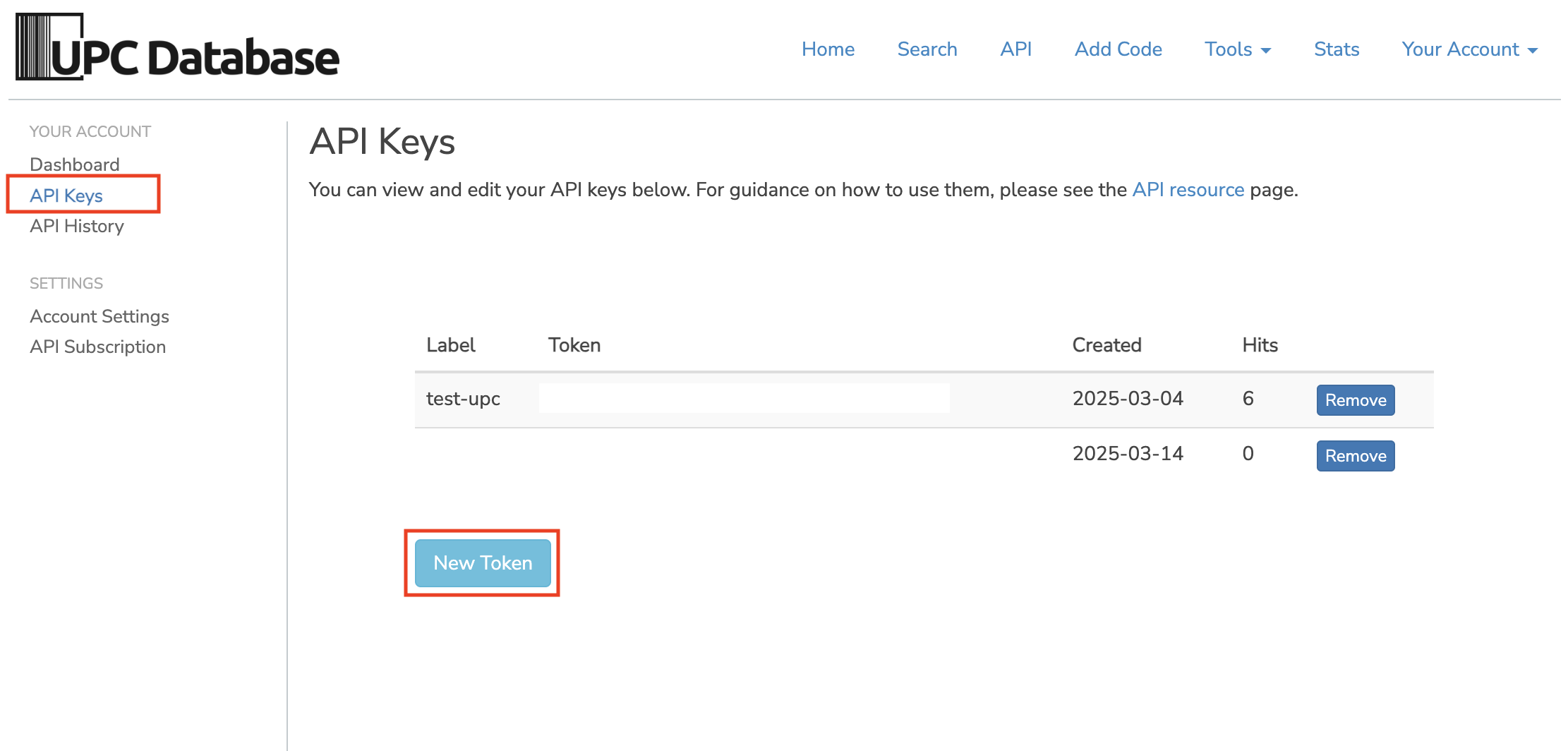 1. Copy the generated API key
Keep your API key secure - it grants access to your UPC Database account and quota
## Add to Anything project
1. In your Anything project, type `/` in the chat
2. Select "UPC Database" from the menu
1. Paste your API key into the "UPCDB\_API\_KEY" field
Need a new key? Generate one in your UPC Database dashboard.
You can now use prompts with the integration to access product information.
Some examples:
* `Look up product details by UPC using /UPCDatabase`
* `Create an inventory management system with /UPCDatabase`
* `Build a product scanner app using /UPCDatabase`
The API limits how often your app can fetch data. If your app loads the same data often, ask the agent to save it locally so it doesn't re-fetch every time.
Example prompt for optimization:
```
When using /UPCDatabase, save the product data so my app doesn't have to fetch it again
```
Your UPC Database integration is now ready! Use the `/UPCDatabase` command in chat to access product information.
1. Copy the generated API key
Keep your API key secure - it grants access to your UPC Database account and quota
## Add to Anything project
1. In your Anything project, type `/` in the chat
2. Select "UPC Database" from the menu
1. Paste your API key into the "UPCDB\_API\_KEY" field
Need a new key? Generate one in your UPC Database dashboard.
You can now use prompts with the integration to access product information.
Some examples:
* `Look up product details by UPC using /UPCDatabase`
* `Create an inventory management system with /UPCDatabase`
* `Build a product scanner app using /UPCDatabase`
The API limits how often your app can fetch data. If your app loads the same data often, ask the agent to save it locally so it doesn't re-fetch every time.
Example prompt for optimization:
```
When using /UPCDatabase, save the product data so my app doesn't have to fetch it again
```
Your UPC Database integration is now ready! Use the `/UPCDatabase` command in chat to access product information.