> ## Documentation Index
> Fetch the complete documentation index at: https://www.anything.com/docs/llms.txt
> Use this file to discover all available pages before exploring further.
# Embed an iframe
> Add your Anything app to any website using iframes
An iframe lets you display your Anything app inside other websites - like embedding a YouTube video. This means users can interact with your app without leaving the host website.
## Getting the embed code
Get your app's embed code in two steps:
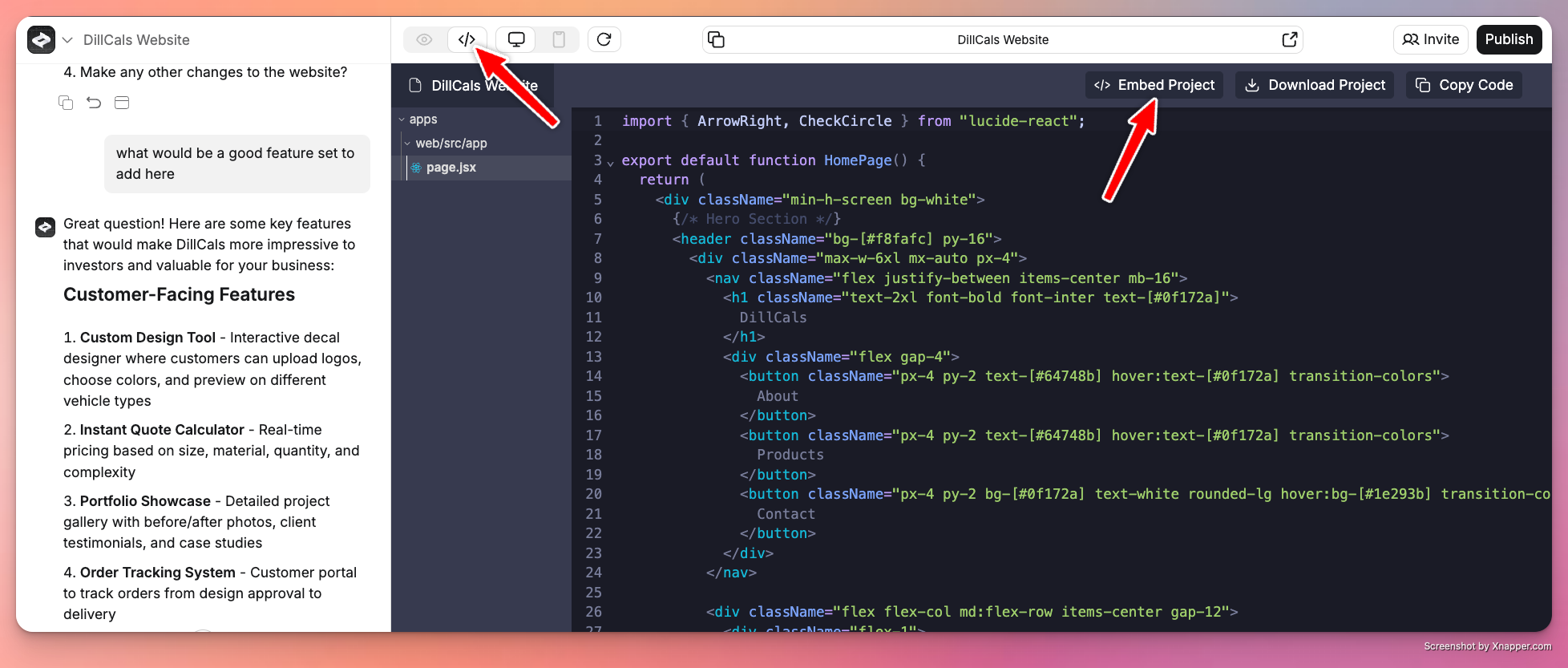
1. Open your project and change to Code View
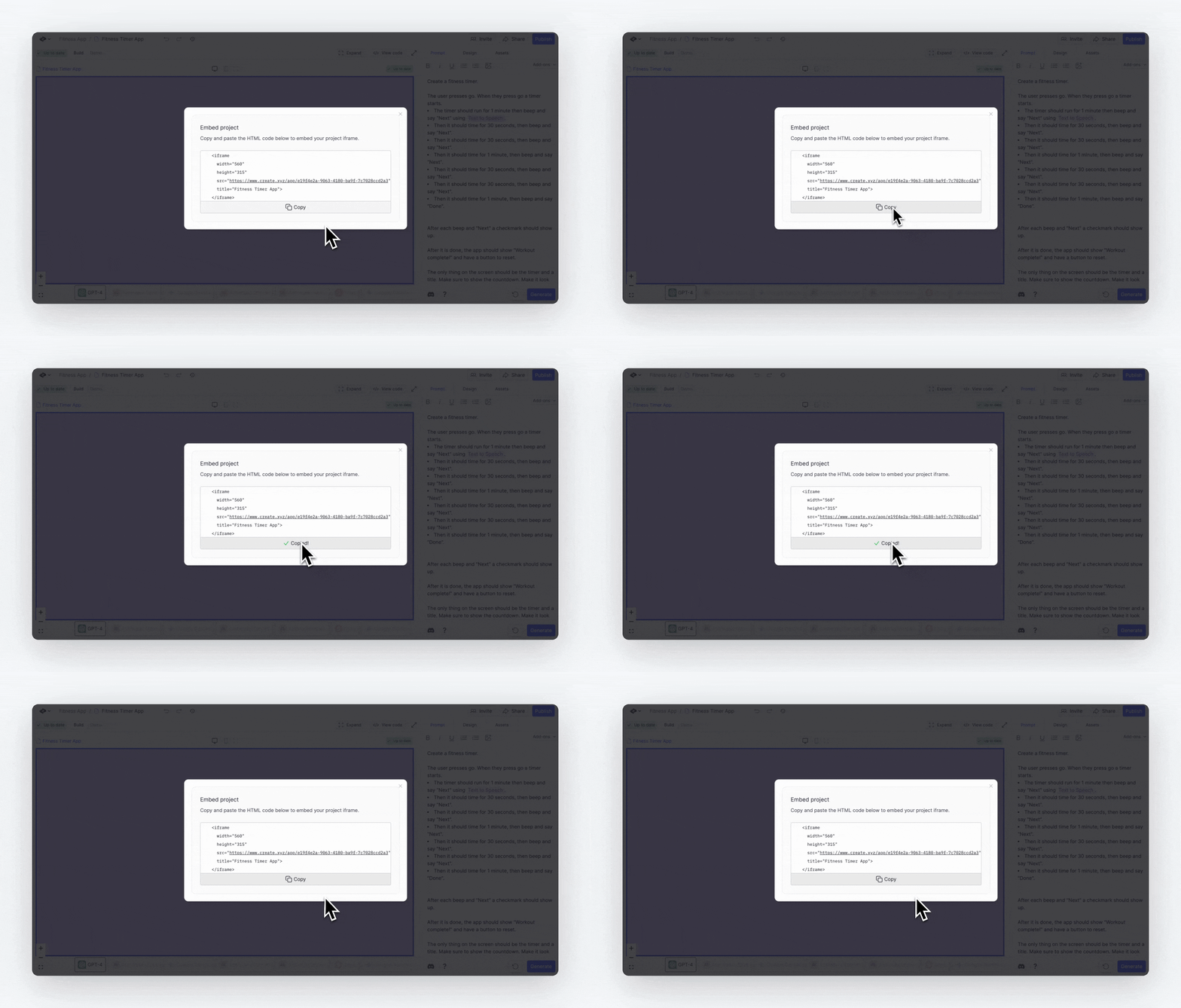
2. Select **Embed Project** and copy the iframe HTML code
 ## Adding to WordPress
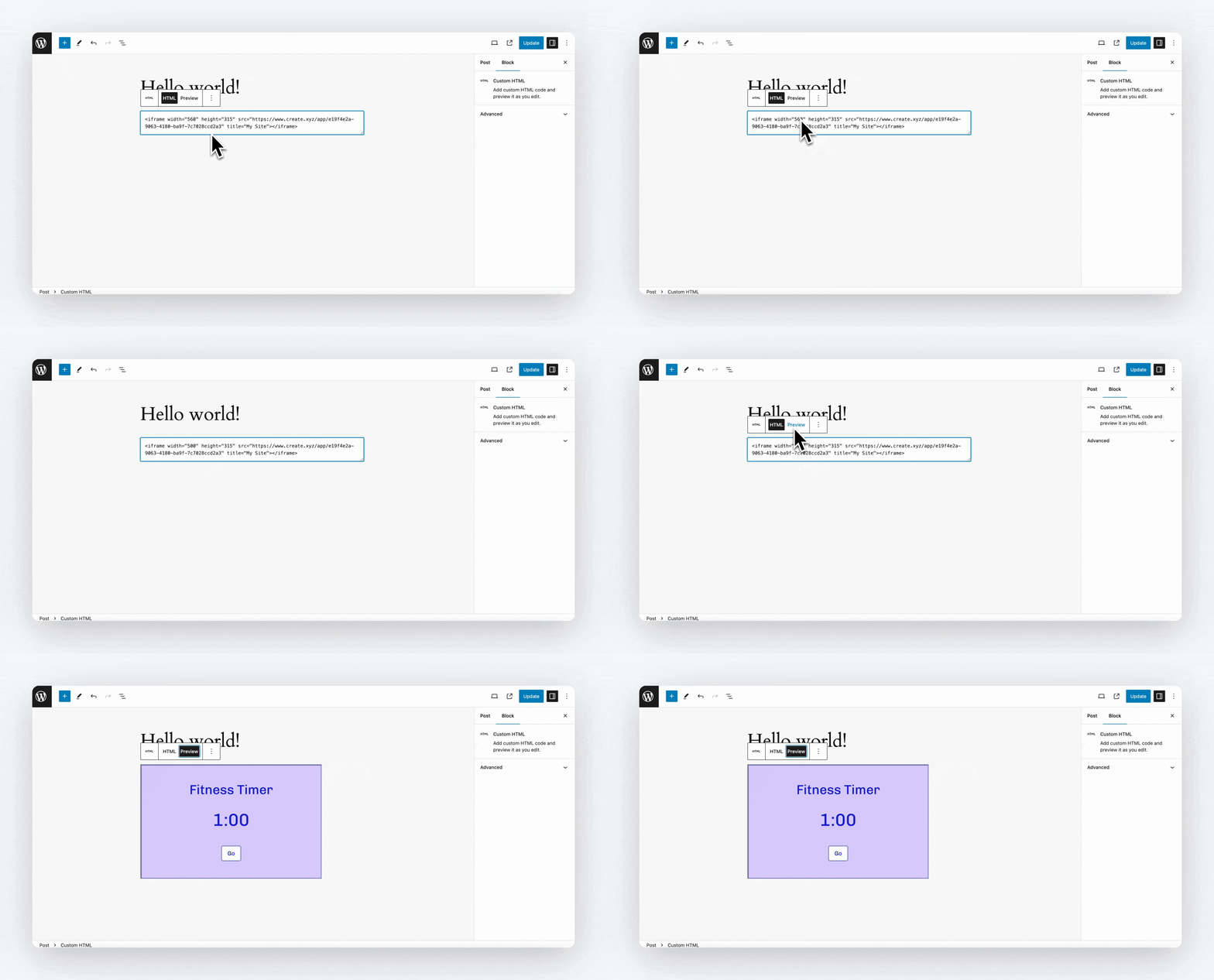
Here's how to add your app to a WordPress.org site:
1. Open your project and change to Code View
2. Click on Embed Project
## Adding to WordPress
Here's how to add your app to a WordPress.org site:
1. Open your project and change to Code View
2. Click on Embed Project
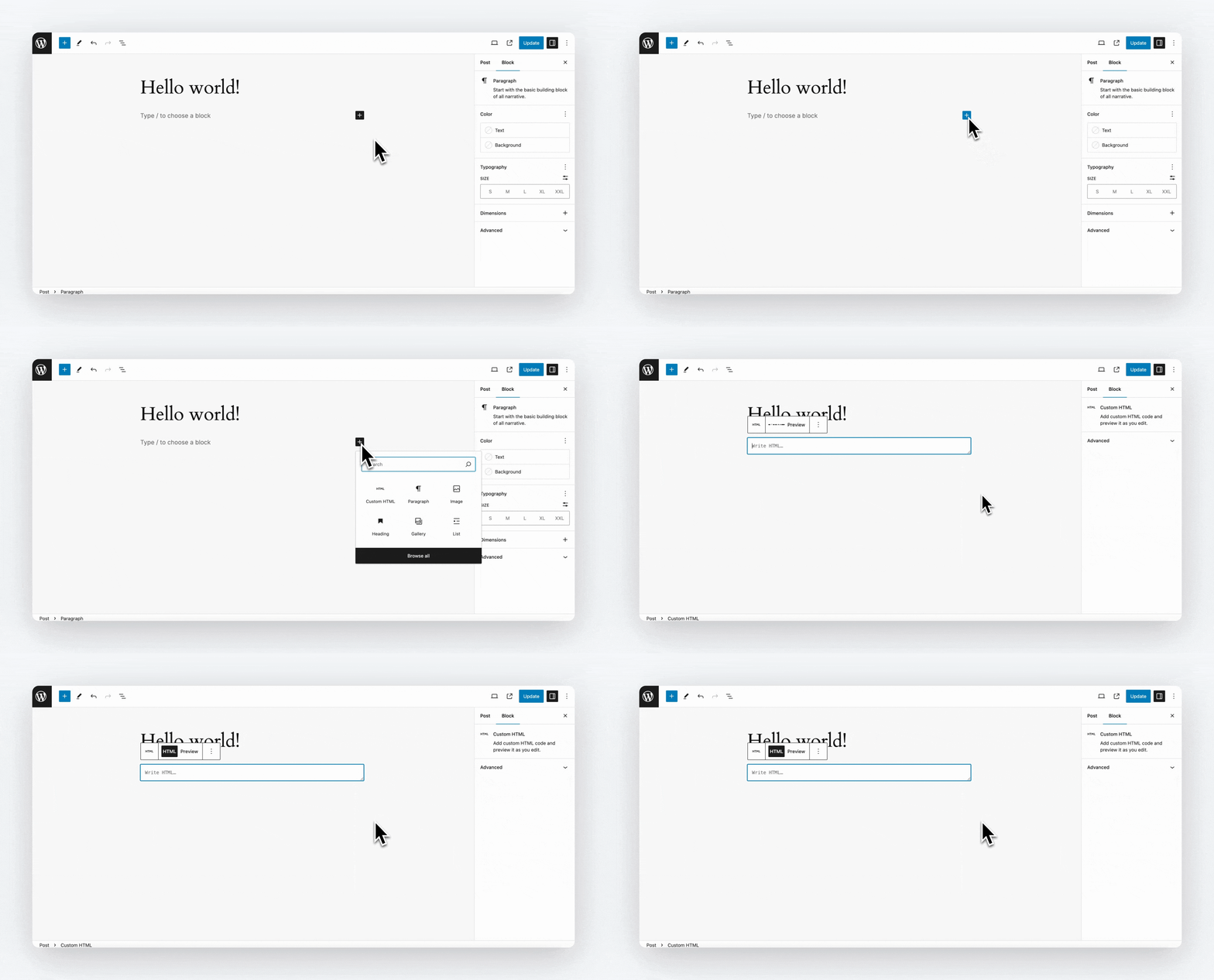
 Inside your WordPress site, add an HTML block
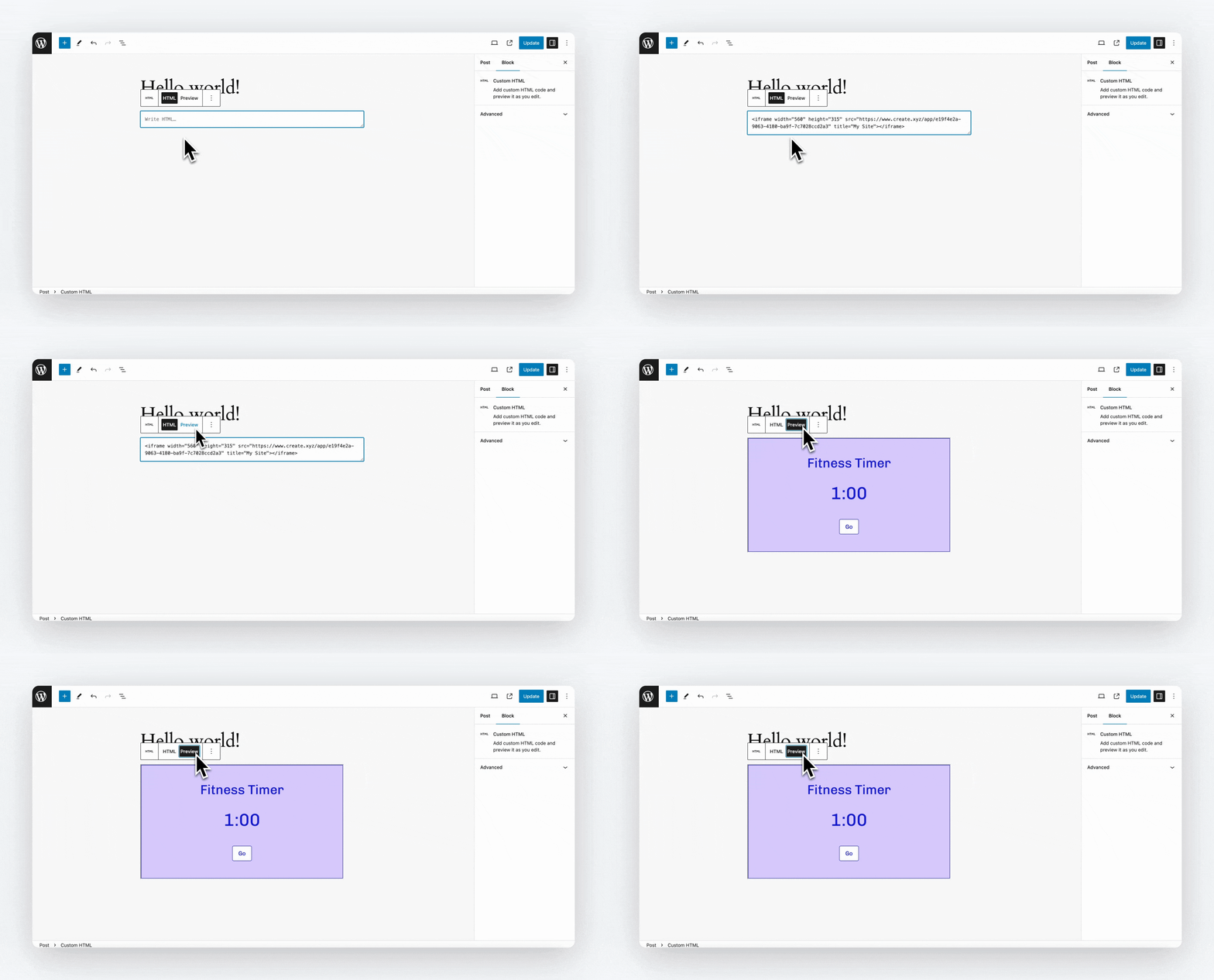 Modify the height and width as needed
 ## Customizing the embed
You can modify how your app appears:
* Change `width` and `height` in the iframe code
* Set a custom `title` for accessibility
* Add CSS classes for styling
### Example code
```html theme={null}
```
If you are working with a wordpress.com site, you may need to use a [plugin](https://wordpress.com/plugins/iframe) to get the iframe to display.
## Customizing the embed
You can modify how your app appears:
* Change `width` and `height` in the iframe code
* Set a custom `title` for accessibility
* Add CSS classes for styling
### Example code
```html theme={null}
```
If you are working with a wordpress.com site, you may need to use a [plugin](https://wordpress.com/plugins/iframe) to get the iframe to display.